

- Import PSA Cards Using Cert Number
- Easy Scan of other Graded Cards
Kronozio Scanning App for Graded Cards


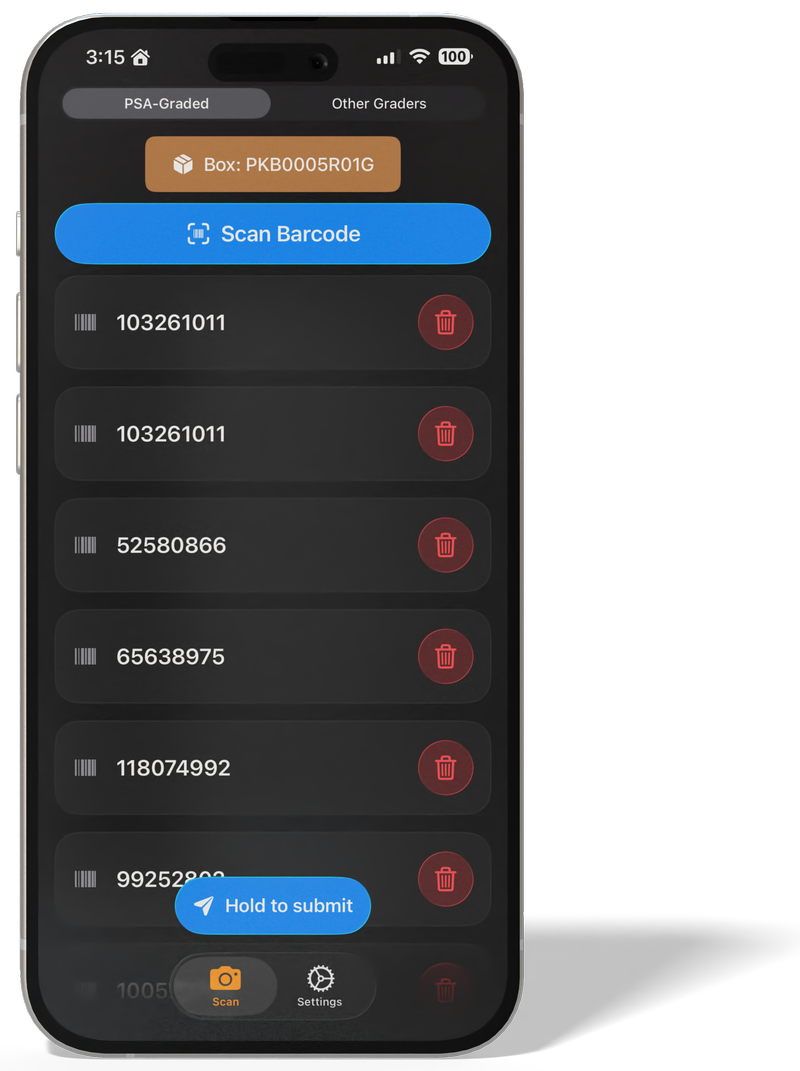
The Alternative to the expensive Epson V600
As you may know, scanning graded cards with most scanners results in blurry images — except when using the Epson V600. That scanner was released back in 2009, and over time its price has risen to the point where, for many collectors, it’s no longer a practical option.
Our mobile app offers a modern alternative. It produces sharp, clear images when scanning non-PSA cards, and for PSA cards, you only need to scan the barcode — the app will automatically retrieve the original image and details directly from PSA.
(Please note that not all PSA cards are yet included in their database)
01
Connect the App to Kronocard
When you open the app for the first time, it will automatically search your network for any available Kronocard instance to connect to. Make sure the computer running Kronocard is on the same network as the phone you’re using to scan PSA barcodes.

02
Scan some PSA barcodes
When you tap Scan Barcode, your phone’s camera will activate and be ready to scan. There’s nothing to press — the app automatically detects any barcode visible in the camera view.
You’ll see two options on the camera screen: you can turn on the light for better visibility, or tap the X to go back. As soon as the app detects a barcode, it will close the camera and load the corresponding code.

03
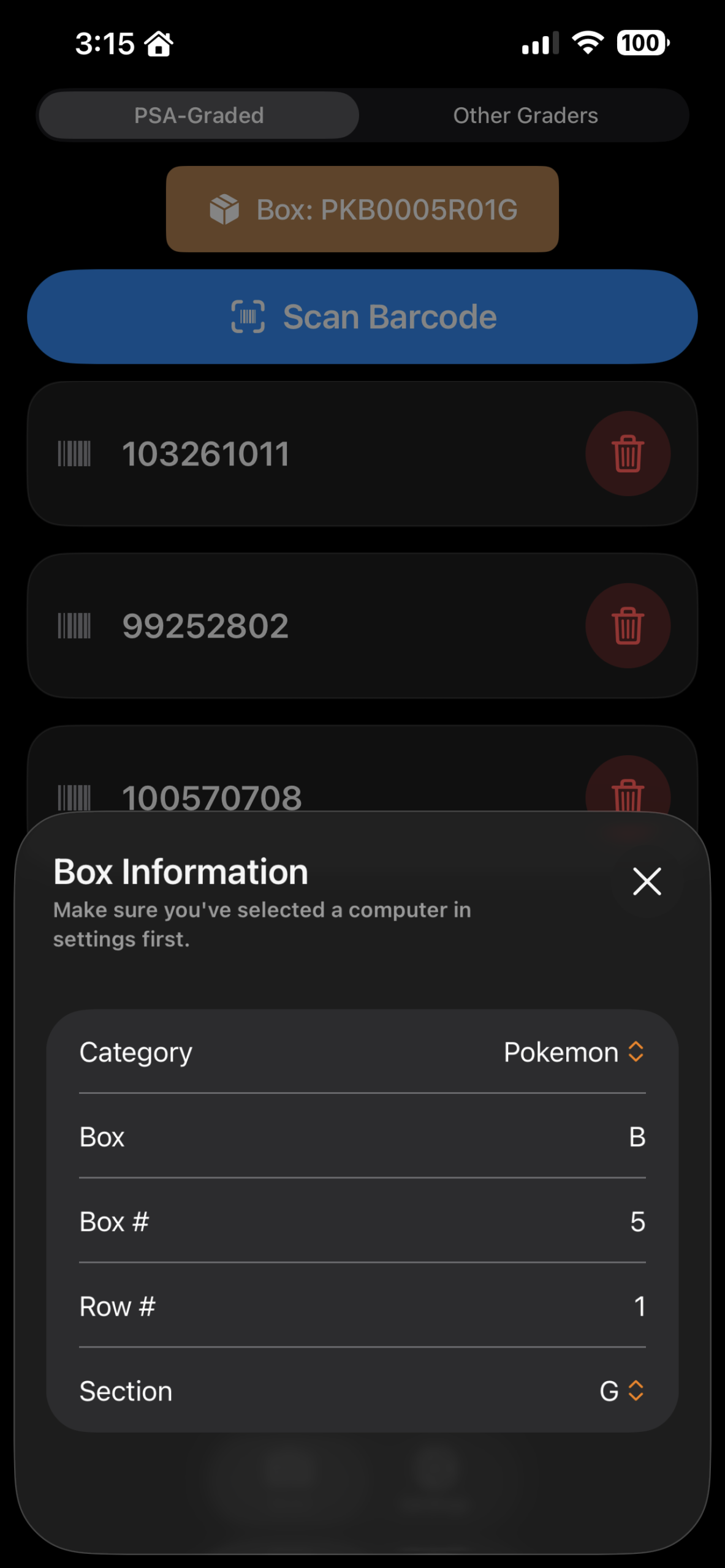
Select where the cards goes in your Kronocard inventory
Before sending the card to your Kronocard, it’s important to choose where you want the card to be added in your Kronocard inventory. This position should also match where the card is physically stored, so Kronocard can tell you exactly where to find it when it’s time to retrieve it after a sale.
04
Send them to Kronocard
Once your barcodes are scanned and a location is selected, press and hold the “Hold to Submit” button. The app will send the information to Kronocard, which will then request the card details from PSA. When the process is complete, you’ll see the cards in your inventory.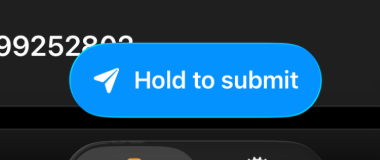
If there’s an error importing cards from PSA, you’ll receive a message in Kronocard indicating which cards failed.
IMPORTANT: Many cards are not included in the PSA database, so Kronocard won’t be able to import them in those cases. You can then switch the app to “Other Graders” mode, which allows you to take front and back photos of the card and submit it for Kronozio AI identification.
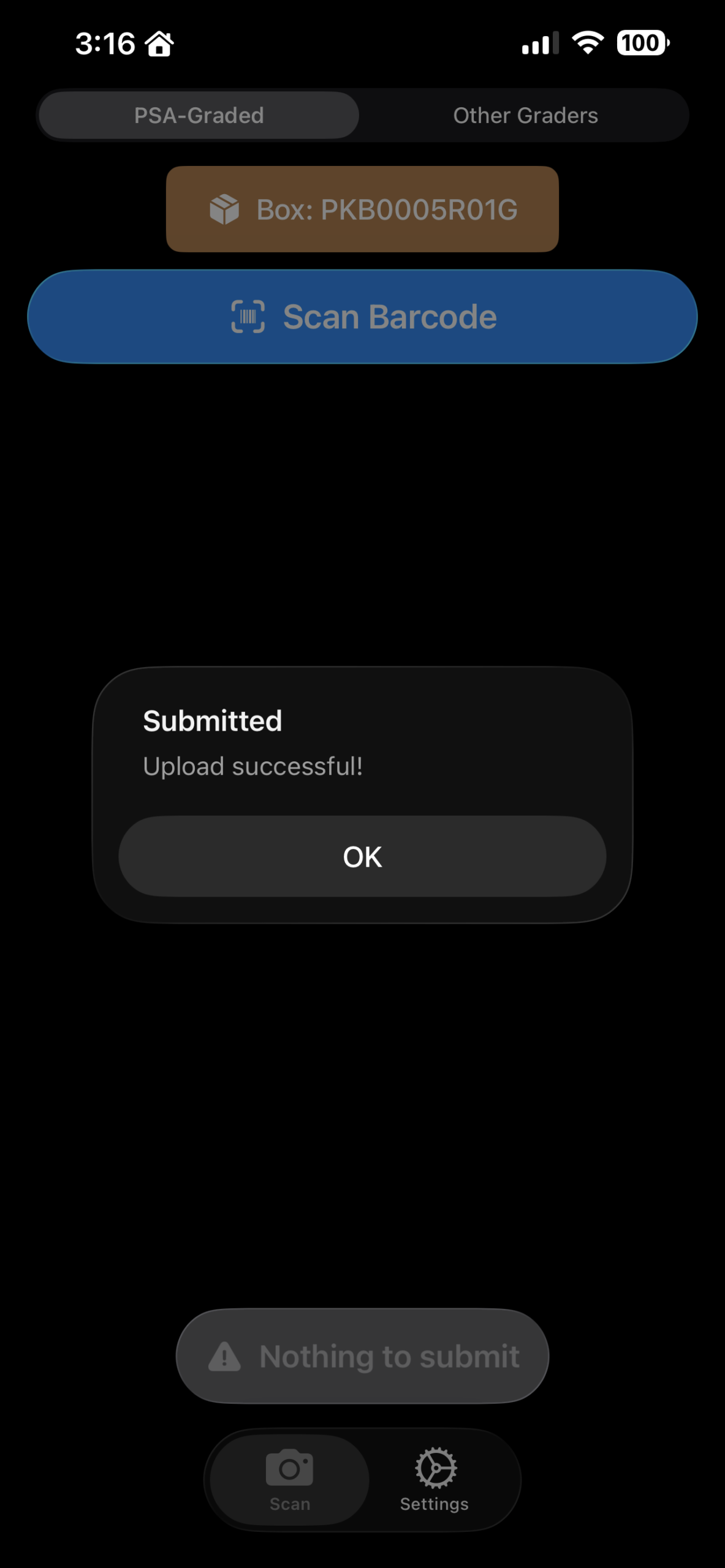
Please note that you need Kronocard version 2.8.9.2 or later to use the mobile integration.
In the coming months, we’ll be adding support for other graders for your convenience.