CDP is slowing you down. We don’t.
- Seamlessly migrate your inventory to Kronozio without rebuilding from scratch.
- Get efficient support and 1-on-1 remote demo/onboarding.
- Use the most efficient AI documentation in the industry!

By following these steps, you will have your cards transferred from CDP to Kronozio quickly. If something is not working for you at any step, please open a ticket HERE, and we will be happy to assist you.
Create a free account so you can start using Kronocard.
Your account is created; now it’s time to download and install Kronocard. If you need more information, you can watch the short video below. Please note that Kronocard can only be installed on a Windows 11 computer and does not work on Mac OS at the moment.
After you successfully install Kronocard, you need to start the app. It will ask you for the username and password you created for your account on Kronozio.com. There are six steps to complete before Kronocard is functional. Don’t worry; this takes around 2 minutes, and then you’re done. Here is a video about it if you’re more of a visual person.
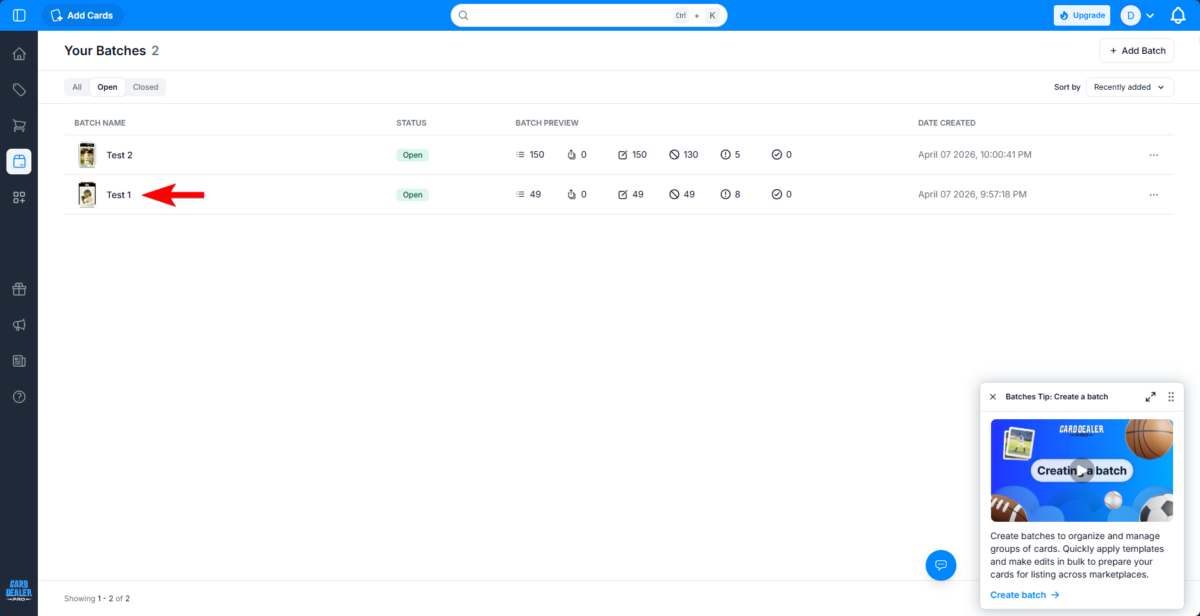
Log in to your CDP account and click on the batch icon on the left. Unfortunately, at the moment, you can’t export your entire inventory; it looks like it’s broken on the CDP website. You need to export one batch at a time.
When in your batches, click the batch you want to export to open it.
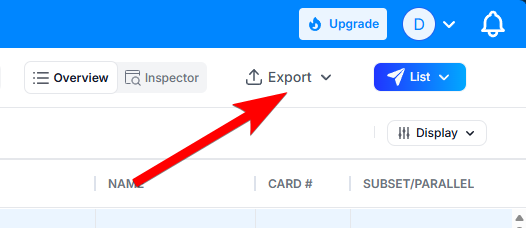
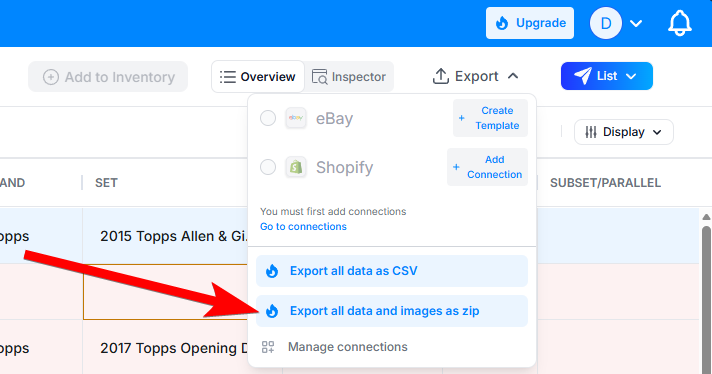
At the top right, click on the Export menu.
Next, in the menu, you should select the option Export all data and images as a ZIP file.
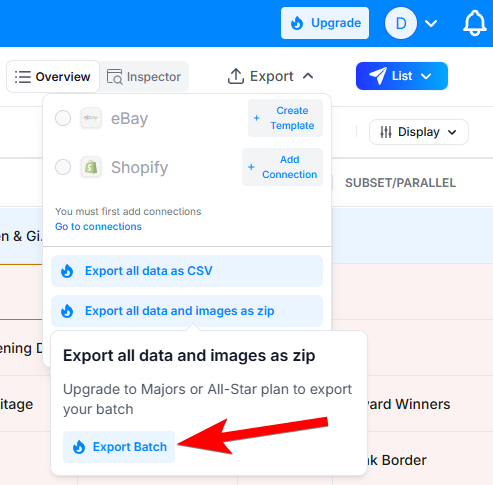
If you have a Majors or All-Star plan, you can now export by clicking on Export Batch. Some users reported that they were able to export with the Prospects plan, but in our case, it didn’t work until we upgraded to the Majors plan for the duration of the export.
Now you can do this with all your CDP batches and keep all the ZIP files in one folder on your computer. They are normally in your Downloads folder. The next steps are in Kronocard.
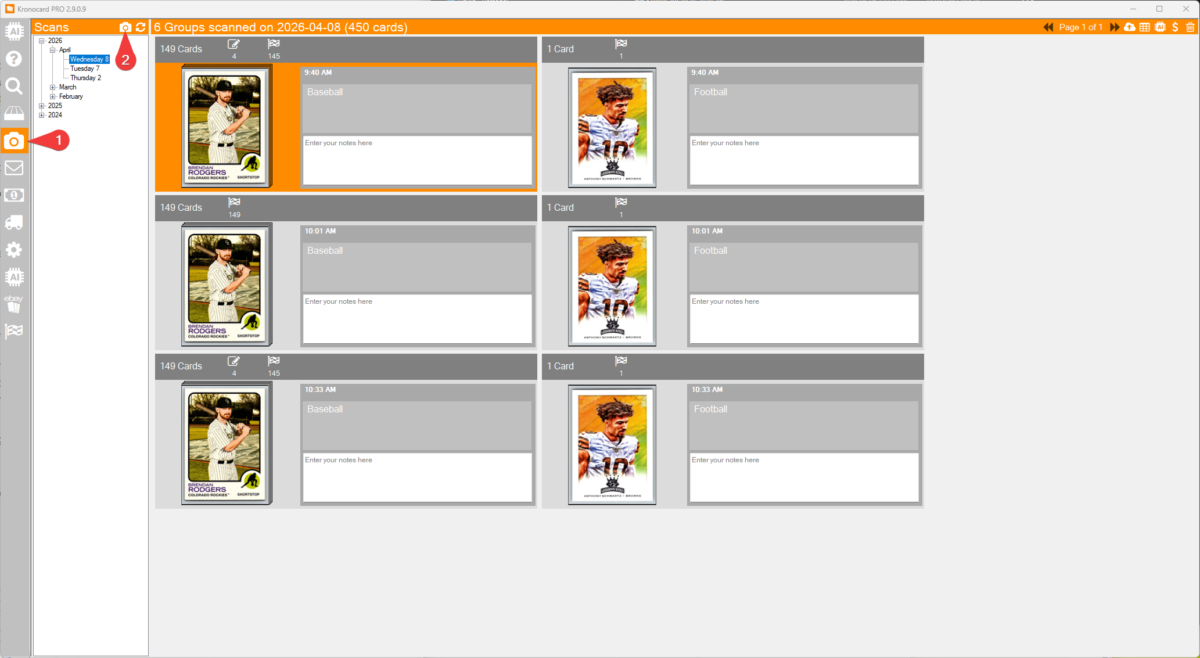
(1) Now back in Kronocard, click on the camera icon in the left menu.
(2) Next, click on the camera at the top.
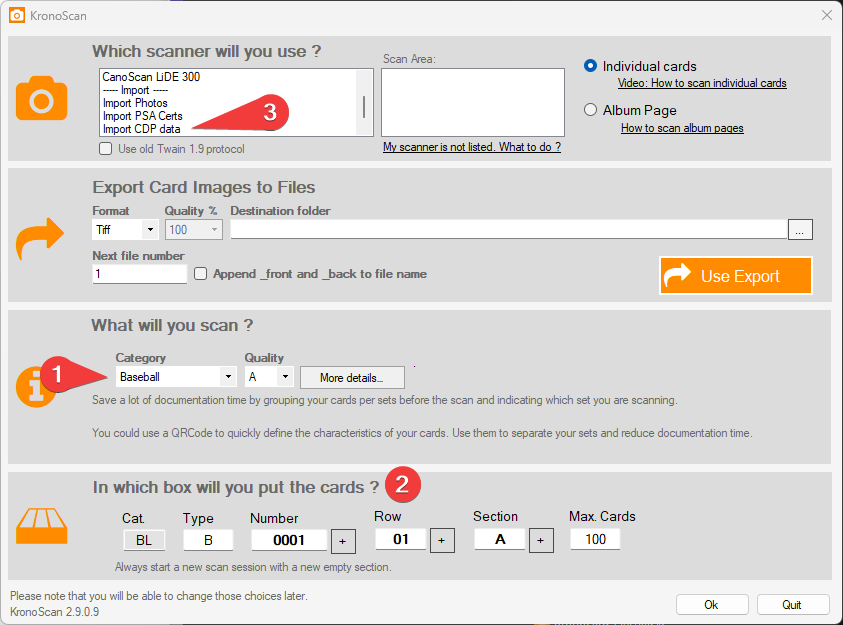
(1) First, select the category that represents the majority of your batch.
(2) If you want, you can select a box that matches your inventory.
(3) Select the Import CDP data option from the list.
It will ask you to select a ZIP file from one of your batches. Select the batch and click OK. It should import your batch into Kronocard.
If something is not working as expected, we are very proactive and can certainly fix any issue when importing your cards, except if CDP doesn’t export the data correctly.
Now that you have cards imported from your CDP inventory into Kronocard, you can select cards that were not documented by CDP and submit them to our improved AI system. This means that all cards not documented using CDP that you import into Kronocard can be documented for free.
Please note that we may cap the total free credits at any time. If this happens in your case, contact us and we will discuss your objectives and situation.